Author: nkscslovers1.6@gmail.com

  • CSGO Update 1/10/2015: Operation BloodHound closes

    Release Notes for 10/1/2015 

    [OPERATION BLOODHOUND]

    – Operation Bloodhound has come to a close.
    – The Falchion Case will be available as a drop for all players.

    [GAMEPLAY]

    – Zeus:
    — Increased price to $200
    — Reduced kill award to $0
    — Reduced max player speed to 220

    [UI]

    – New Music Kits will be available for purchase directly in the main menu for a limited time.

    [MISC]

    – In official competitive matches, voice communications are now team-only in warmup and half-time, allowing players to discuss player roles and strategies.

  • CS GO update 15 September 2015: Reanimation

    CS GO update 15 September 2015: Reanimation


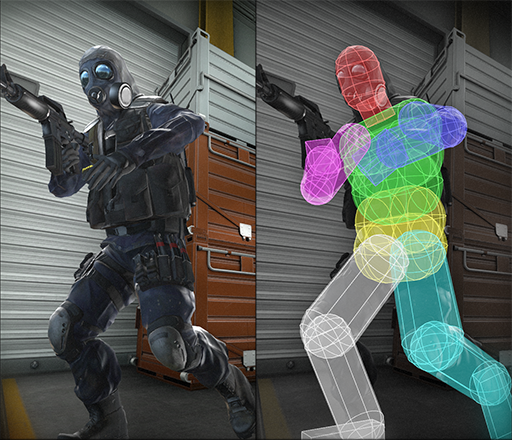
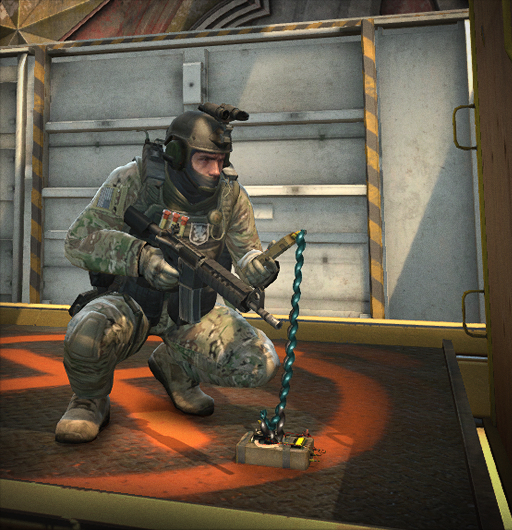
    This new CS GO update modernizes the player’s skeleton and hitboxes to better express at-a-glance exactly what your enemies and teammates are doing. We’ve upgraded all the existing body animations, and added some new ones like visible weapon deploys, bomb defusing, and ladder-climbing.

    Defusing csgo new update

    The Hitboxes are reanimated as shown:
    hitboxes csgo new update

    Release Notes:

    [ ANIMATION / GAMEPLAY ]
    – Replaced all player body animations (Existing character models retained for demo compatibility)
    – Replaced all world model weapon animation
    – Updated shared player skeleton
    – Re-rigged all player model geometry and player scaffold animation
    – Updated animation networking to continually synchronize animation state instead of periodically latching
    – Player animation sequence selection is now server-initiated
    – Added new player states including bomb defusal and ladder climb poses
    – Added thirdperson weapon deploy animations to more accurately represent viewmodel deploy state
    – Extended all vertical aim matrix ranges to encompass the majority of vertical aim pitch so weapons line up precisely to firing angle
    – Added reverse-bone-merge animation support so weapon models can store and play independent animation on the player holding them
    – Added support for arbitrary numbers of articulated mechanical parts on world weapon models
    – Updated weapon world model articulation points, bodygroup presets, holster positions and reverse-bone-merge skeletons
    – Added physics motion to holstered attachment weapon locations
    – Added support for non-polygonal capsule-shaped hit volumes, defined by a line segment and radius
    – Replaced shared hitboxes with new capsule-based set
    – Rebuilt player ragdoll angular constraints, physics hulls, and interaction pairs
    – Ragdolls now assume more exact pose of their parent player on physics init
    – Re-built animation statemachine to support blending locomotion over any weapon aim or action poses
    – Enabled support for dynamic player animation layer re-ordering
    – Sequence blendlayers now correctly contribute to computed cyclerate
    – Added defuser cables and multimeter model
    – Added hlmv support for capsule rendering, submodel attachment previewing, ragdoll constraint limit and bone name rendering, plus numerous small fixes
    – Added model format support for named bodygroups, combined physics hulls, activity modifiers and animation system specific metadata
    [ UI ]
    – Fixed a bug where the mini-scoreboard armor/helmet information was not displaying for coaches
    – Added sv_show_voip_indicator_for_enemies server convar. If set, it will make it so the ‘voice chat’ icon shows over enemy players as well as allies when they are using their microphone.
    – Added sv_showbullethits feature to visualize server-confirmed hits and near-misses on listen servers
    [ RENDERING ]
    – Fixed improper stencil state in glow pass rendering

    [ GAMEPLAY ]
    – Added dynamic player culling to prevent players and weapons poking through thin walls and revealing their position
    – M4A1-S:
    — Reduced price
    — Reduced armor penetration
    — Reduced ROF
    — Increased base spread
    – Zeus x27
    — Reduced price to $100
    – Dual Berettas
    — Increased armor penetration
    — Increased range modifier
    [ GOTV ]
    – Added viewmodel position lerp to gotv camera transitions.
    [ OVERWATCH ]
    – Players can now report enemies for anti-competitive griefing (i.e. deliberately losing).
  • CS GO FPS Booster Configuration (CFG)

    CS GO FPS Booster Configuration (CFG)

    Counter Strike: Global Offensive is a FPS (Frames Per Second) game and good FPS means better performance. As most of us cannot afford to buy an expensive PC, there are some tweaks that can be applied to improve the frames per second in-game.


    csgo improve fps


    After checking out so many scripts and console commands I present here the CS GO Configuration file (CFG) that will give you the maximum FPS possible out of your current system.


    //FIRST
    sv_cheats "1"
    developer "0"
    
    //NO PREFIX
    rate "128000"
    
    //CL
    cl_autohelp "0"
    cl_autowepswitch "0"
    cl_bobamt_lat "0.1"
    cl_bobamt_vert "0.1"
    cl_buy_favorite_quiet "0"
    cl_buy_favorite_nowarn "0"
    cl_cmdrate "128"
    cl_crosshairalpha "999"
    cl_crosshairscale "1700"
    cl_crosshairusealpha "1"
    cl_interp "0.02"
    cl_lagcompensation "1"
    cl_observercrosshair "1"
    cl_resend "1.5"
    cl_righthand "1"
    cl_scalecrosshair "1"
    cl_updaterate "128"
    cl_windspeed "0"
    cl_wpn_sway_scale "1"
    
    //DEMO
    demo_recordcommands "1"
    
    //DSP
    dsp_enhance_stereo "1"
    
    //FPS
    fps_max "999"
    
    //FUNC
    func_break_max_pieces "0"
    
    //MAT
    mat_bloomamount_rate "0.05f"
    mat_bumpbasis "0"
    mat_debugalttab "0"
    mat_debug_bloom "0"
    mat_debug_postprocessing_effects "0"
    mat_disable_bloom "1"
    mat_fastnobump "1"
    mat_force_bloom "0"
    mat_hdr_enabled "0"
    mat_leafvis "0"
    mat_loadtextures "1"
    mat_norendering "0"
    mat_show_texture_memory_usage "0"
    mat_softwareskin "0"
    mat_surfaceid "0"
    mat_surfacemat "0"
    mat_yuv "0"
    
    //NET
    net_graphheight "65"
    
    //SOUNDSCAPE
    soundscape_fadetime "9999"
    
    //SV
    sv_forcepreload "1"
    sv_maxcmdrate "64"
    sv_maxrate "80000"
    sv_mincmdrate "64"
    sv_minrate "20000"
    
    //R
    r_ambientfraction "0.1"
    r_avglight "1"
    r_avglightmap "0"
    r_dynamic "0"
    r_lightcache_numambientsamples "162"
    r_lightinterp "0"
    r_lightstyle "-1"
    r_radiosity "4"
    r_skin "0"
    r_updaterefracttexture "0"
    
    //LAST
    soundscape_flush
    

    This will improve your FPS for sure.

    How to use?

    To use these commands just create a file autoexec.cfg and paste into:

    C:ProgramFiles(x86)steamsteamappscommonCounter-Strike Global Offensivecsgocfg


    Or you can directly Download the file from here
    and paste it into above folder.

    Also, the new Source Engine version uses an automatic detection system for most of the graphic settings. To bypass this, go into:

    C:ProgramFiles(x86)steamsteamappscommonCounter-Strike Global Offensivecsgocfg

    Edit:  video.txt

    "config"
    {
        "setting.mat_software_aa_strength"        "1"
        "setting.fullscreen"        "1"
        "setting.nowindowborder"        "0"
        "setting.aspectratiomode"        "1"
        "setting.mat_vsync"        "0"
        "setting.mat_triplebuffered"        "0"
        "setting.mat_monitorgamma"        "2.200000"
        "setting.mat_queue_mode"        "-1"
        "setting.mat_motion_blur_enabled"        "0"
        "setting.cpu_level"        "0"
        "setting.videoconfig_version"        "1"
        "setting.mem_level"        "0"
        "setting.gpu_level"        "0"
        "setting.mat_antialias"        "0"
        "setting.mat_forceaniso"        "0"
        "setting.mat_grain_scale_override"        "1"
    }
    

    Just paste the above commands in your video.txt, do not care about other commands in this file as those will be automatically added once you start your game.


    Try this and I’m sure you will find increment in your FPS.

  • CS GO: Understanding Radar Settings

    CS GO: Understanding Radar Settings

    Understanding the radar is one of the best way to know the whole scenario of the game. Every professional player is well aware of the locations where his teammates and enemies are by looking at the Radar, so radar is a one of the 10 best counter strike tips for improving gaming skills.


    CSGO radar


    Why is Radar important?

    • To know whole scenario of the map.
    • See teammates with yellow dot.
    • See enemies with red dot.
    • See enemy’s last position with a red question mark.
    • See where bomber is or where bomb is dropped.
    • Even see the level of the teammate or enemy, if there is opposite downward ‘T’ below the player’s position means he is below your floor/surface and if its normal ‘T’ above the player’s position means he is above your surface/floor.


    Problem with Default Radar:

    The default Radar shows a very small amount of whole map and player outside the small area in the radar are shown as a triangle.
    Suppose you are at upper tunnel (UT) in de_dust2 and enemy is spotted at high mid then you’ll the red triangle and you cannot guess whether he is at High mid or A-Long.


    Set your Radar for Maximum use:

    Open console and type “cl_radar_always_centered 0″
    Now see the changes:

    csgo radar settings

    See how we are “wasting” half of the radar on black nothing. When not centered we are able to see more of the map.

    Now type “cl_radar_scale 0.3″

    This will scale the radar and you will see bigger amount of map in Radar.

    cs go radar settings scale


    cl_hud_radar_scale

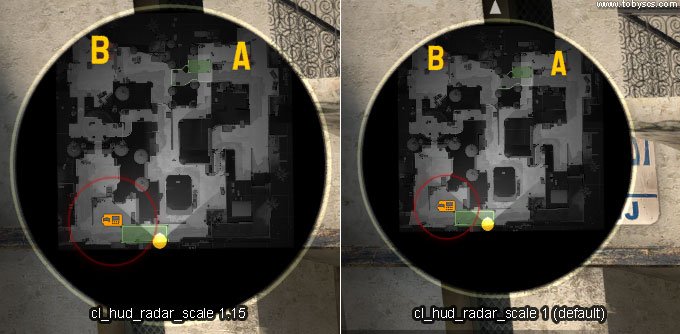
    When scaling the map down, we loose some of the details. To compensate for some of this, we can scale up the radar HUD.
    Command:
    cl_hud_radar_scale 1.15
    cl_hud_radar_scale
    As you can see, the radar HUD is now bigger. I find that 1.15 to be the sweet spot, where you can still see all information on screen.


    cl_radar_icon_scale_min

    This step is optional, but I use it myself. It makes the icons on the radar bigger, which I find useful.
    Command:
    cl_radar_icon_scale_min 1
    cl_radar_icon_scale_min


    Final Radar Tweakings

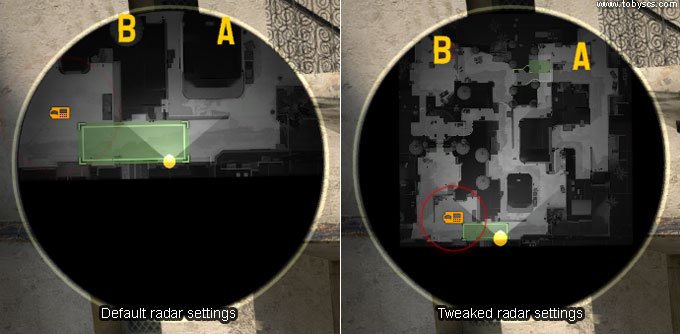
    Now that we have tweaked our radar settings we have a much more useful radar, where the whole map is displayed at all time. Check this comparison between the default settings and our tweaked settings:
    CS:GO Tweaking radar settings
    The only bad thing about the tweaked radar, is that the map is not very detailed, whereas when the scale is bigger, it is easier to see the map details. If you know the map well, this is not necessary though, at least in my opinion


    cl_radar_rotate

    If you don’t want the radar to rotate with you, you can turn off the radar rotation.
    cl_radar_rotate 0 //off
    cl_radar_rotate 1 //on - recommended

  • CSGO Mouse Settings Remove acceleration

    CSGO Mouse Settings Remove acceleration

    What is Mouse acceleration?

    Mouse acceleration is the extra acceleration provided by Operating System for smooth mouse movements with less efforts, but this is a drawback for Gaming as it leads to loose control over the mouse while playing. More acceleration means mouse  movements will be high as per your control, so every good or professional counter strike player always disable the mouse acceleration and it is recommended for newbies to play without mouse acceleration and with low sensitivity.

    How to disable Mouse acceleration in Windows?

    Go to “control panel -> mouse -> pointer options”. The pointer speed should be at 6/11 – this is the Windows default speed. Enhance pointer precision should NOT be checked on. Going over 6/11 in Windows sensitivity, will result in skipped pixels. At 8/11 two pixels is occasionally skipped and at higher sensitivities, the minimum mouse movement becomes multiple pixels. At lower Windows sensitivities, certain amounts of movement are thrown out, but minimal mouse movements still results in 1 pixel of movement.
    remove mouse acceleration counter strike

    Disable mouse acceleration for CS:GO:

    Open your CSGO–>Options–>disable mouse acceleration.
    You can also archive these settings by console commands. I use the following settings in my autoexec.cfg:
    m_rawinput “1” //Raw Input on
    m_customaccel “0” //Mouse Acceleration off
    m_customaccel_exponent “0” //Acceleration Amount
    m_mousespeed “0” //Windows mouse acceleration off
    m_mouseaccel1 “0” //Windows mouse acceleration initial threshold (2x movement)
    m_mouseaccel2 “0” //Windows mouse acceleration secondary threshold (4x movement)

    Disable Mouse Acceleration using Launch Options:

    For Steam:

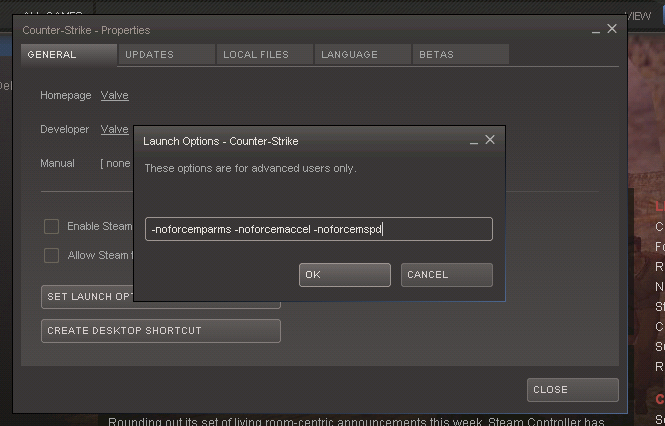
    1.  Open steam, go to games list, right click on the Counter Strike 1.6 and select properties.

    Launch options Counter strike
    2. Click on set launch options button and in the text field type this
    -noforcemparms -noforcemaccel -noforcemspd
    3. Click on ok, and run the game.

    For complete launch options guide see How to set Launch Options

    For Non-Steam:

     For non-steam users create a shortcut of hl.exe and in its properties put
      -noforcemparms -noforcemaccel -noforcemspd
     Just after 1 space (after double quotes) in the target field.
    Comment for any Query!!
  • Download CS 1.6 Fnatic MSI GUI

    Download CS 1.6 Fnatic MSI GUI

    fnatic msi gui cs 1.6

    Installation Instruction:

    1. To optimize the graphics of the FnaticMSI GUI the user should install from the folder with the name that matches your resolution.


    For example, if you are using 800×600, extract the files from the folder named “800×600” into
     steamappscommonHalf-Lifecstrike.
    Make sure to allow all overwrites.

    2. Maps Included in FnaticMSI GUI:

    The Fnatic GUI comes with the aim maps the FnaticMSI players are using for practice.


    De_Tuscan and de_mirage is also in the map pack.

    •     aim_ak_map.bsp
    •     aim_glock.bsp
    •     aim_glocker.bsp
    •     aim_map_usp.bsp
    •     de_tuscan.bsp
    •     de_mirage.bsp
    •     de_forge

    3. Download Link:

    Above link not working?

    Try alternate – FnaticMSI_GUI.rar

  • CS 1.6 AMX (MODX) Admin Commands List

    CS 1.6 AMX (MODX) Admin Commands List

    These commands are available only for Admins of the server.

    cs 1.6 amx modx


    1. Admin Commands Description
    amx_kick <name or #userid> [reason] Kicks a player from the server.
    amx_ban <name or #userid> [reason] Bans a player from the server.
    amx_addban <authid or ip> <minutes> [reason] Adds a ban to the server ban list.
    amx_unban <authid or ip> Unbans a player from the server.
    amx_slay <name or #userid> Slays a player.
    amx_slap <name or #userid> [damage] Slaps a player for variable damage.
    amx_leave <tag> [tag1] [tag2] Kick all players not wearing one of the tags.
    amx_pause Pauses or unpauses the game.
    amx_who Displays who is on the server.
    amx_cvar <cvar> [value] Changes or displays a cvar value.
    amx_map <mapname> Changes the map.
    amx_cfg <filename> Executes a server side config file.
    amx_rcon <rcon command> Executes a command on the server console.
    amx_plugins Lists all loaded plugins.
    amx_modules Lists all loaded modules.

    These Commands are available for All Players.

    2. Chat Commands Description
    amx_say <message> Sends a message to all players in normal chat.
    amx_chat <message> Sends a message to all players in normal chat.
    amx_psay <name or #userid> message Sends a private message to a player.
    amx_tsay <color> <message> Sends a left side HUD message to all players in various colors.
    amx_csay <color> <message> Sends a center HUD message to all players in various colors.


    3. Vote Commands Description
    amx_votemap <map> [map] [map] [map] Starts voting.
    amx_votekick <name or #userid> Starts a vote to kick a player.
    amx_voteban <name or #userid> Starts a vote to ban a player.
    amx_vote <question> <answer1> <answer2> Starts a custom poll.
    amx_cancelvote Cancels the last poll in progress.


    4. Stats Commands Description
    /hp Displays information about the player that killed you.
    /statsme Displays your stats.
    /stats Displays other players stats.
    /top15 Displays the top 15 players on the server.
    /rank Displays your rank on the server.


    5. Say Commands Description
    nextmap Displays the next map in the maycycle.
    timeleft Displays the time left on the map.
    thetime Displays the current time.


    6. Menu Commands Description
    amxmodmenu Displays the main AMX Mod X menu.
    amx_cvarmenu Displays the CVAR menu.
    amx_mapmenu Displays the map change menu.
    amx_votemapmenu Displays the map voting menu.
    amx_kickmenu Displays the kick menu.
    amx_banmenu Displays the ban menu.
    amx_slapmenu Displays the slap/slay menu.
    amx_teammenu Displays the team switch menu.
    amx_clcmdmenu Displays the client commands menu.
    amx_restmenu Displays the weapons restrictions menu.
    amx_teleportmenu Displays the teleport menu.
    amx_pausecfgmenu Pause/Unpause plungins with menu.
    amx_statscfgmenu Displays stats configurations menu.
  • Download CS 1.6 Default Models

    Download CS 1.6 Default Models

    Many Counter Strike 1.6 setups are provided with different types of Model (Player and Weapon) or some time people replace Default model as they get bored of it.


    But new HD models of players and weapons leads to lower FPS and finally they want back original default Models.


    Download here the default original HLTV counter strike 1.6 player and weapon models.


    1. CS 1.6 Default Weapon Model/Skin

    Download here : default_hltv_models.rar

    2. CS 1.6 Default Players Model/Skin

    Download here: default_hltv_players_model.rar

    You can also download the default Counter Strike game with default skins as well as inbuilt bots:
    Download CS-1.6.exe (283 MB)

    Comment if you face any problem!

  • CS GO Weapon Guide: M4A4

    CS GO Weapon Guide: M4A4

    The M4A4 is the default weapon of choice for Counter-Terrorists in CS:GO, only to be surpassed by its Terrorist counterpart, the AK-47, due to it’s lack of one-shot-kill ability against opponents with helmets (only 90 damage). Still, you should aim to master both, since you will use them in most of your games. As a bonus the M4A4 lets you move the fastest among the rifles. On CT side it is recommended to buy the M4A4 as the standard weapon after the light rounds, when you are not playing AWP.The M4A4 is very effective on all distances, but especially for medium and long distance.

    There are 3 ways to shoot using M4A4:

    1. Tapping:

    Tapping with the M4A4 is not as popular as with the AK-47, since you can’t kill an enemy with full head armor with a single shot. It’s still worth practicing for long distance combat. Just aim for the head and shot only once, wait until your (dynamic) cross is fully reset and repeat as fast as possible. This technique avoids spray effects altogether. Since it take only milliseconds, you can actually shoot pretty fast. Practice shooting at the exact same spot on a wall, until you got the timing perfectly.

    2. Bursting:

    Bursting with the M4A4 is the most effective shooting techniques. Against an armored opponent, 2 bullets to the head or 5 to the body will do the job. To practice bursting aim for the head and shot 2-4 times. While the first 2-3 shots are pretty accurate, after that you need to pull down slightly so compensate for the recoil. Practice this by shooting against a wall. If you do not have dynamic crosshair (most don’t these days), you know that the your aim is reset, when your weapon model is back into default position (it goes up and back while bursting). You can use bursting in combination with side stepping / strafing in order to be harder to hit. Use bursting especially for close to medium distances.

    3. Spraying:

    Spraying can be effective with the M4A4 in short distance fights against multiple opponents, due to its high rate of fire. Even if you don’t hit a headshot (for which you should always aim) the first hit will most likely throw off your opponents aim. 

    Spray patterns and recoil compensation:

    Mastering the above techniques (especially the full spray) takes a lot of  practice time to master. To speed up your learning curve, look at the following animated pray patterns by twowordbird. The first shows the exact spray pattern (without randomness) of the M4A4, while the second show the movement your mouse needs to do to compensate it. Try to follow the seconds pattern with your mouse, then try to repeat it in the game.

    Properties:

    M4A4 Properties
    Price $3100
    Magazine capacity 30/90
    Firing mode(s) Automatic
    Rate of fire 666 RPM
    Used by Counter-Terrorists
    Reload time 3.1 seconds
    Movement speed 225
    Kill Award $300 (Competitive)
    $150 (Casual)
    Damage 33
    Armor Penetration 70%
    Penetration Power 200
    Hotkey B-4-2 CT

  • CS GO Weapon Guide: AK 47

    CS GO Weapon Guide: AK 47

    The AK-47 is
    probably the best (automatic) weapon in CS:GO, since it is able to
    one-shot-kill even with armor, if you hit the head or neck.

    There are 3 ways to shoot using AK 47:

    1. Tapping:

    Aim for the head and shot only once, wait until your (dynamic) cross is fully reset and repeat as fast as possible. This technique avoids spray effects altogether. Since it take only milliseconds, you can actually shoot pretty fast. Practice shooting at the exact same spot on a wall, until you got the timing perfectly. Some players only use this technique with the AK-47, because of its one-shot-kill ability, but most prefer to use it mostly for long distance combat.

    2. Bursting:

    Aim for the head and shot 2-4 times. While the first 2 shots are pretty accurate, after that you need to pull down slightly so compensate for the recoil. Practice this by shooting against a wall. If you do not have dynamic crosshair (most don’t these days), you know that the your aim is reset, when your weapon model is back into default position (it goes up and back while bursting). You can use bursting in combination with side stepping / strafing in order to be harder to hit. Prefer this technique in close to medium distances.

    3. Spraying:

    It means just press the left mouse button and lets see what happens, the AK-47 sprays a lot more in CS:GO than in CS 1.6. But if you are in short distance fights and have to face multiple opponents, it is quite effective to spray. Even if you don’t hit a headshot (for which you should always aim) the first hit will most likely throw off your opponents aim.

    Spray patterns and recoil compensation:


    Properties:

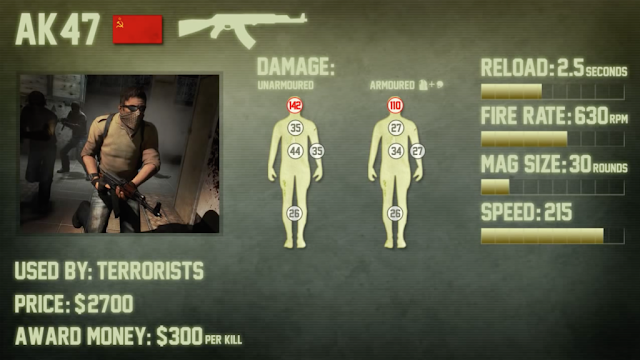
    AK-47 Properties
    Price $2700
    Magazine capacity 30/90
    Firing mode(s) Automatic
    Rate of fire 600 RPM
    Used by Terrorists
    Reload time 2.5 seconds
    Movement speed 215
    Kill Award $300 (Competitive)
    $150 (Casual)
    Damage 36
    Armor Penetration 77.5%
    Penetration Power 200
    Hotkey B-4-2
    Comment for any query